

On this page
Before you start
JPG or PNG, each under 5 MB. Most phone photos are 2 to 4 MB and are fine. WEBP, HEIC and SVG are not accepted.
Portrait, 2:3. For example 1600 by 2400 pixels. Any shape uploads, but a square or landscape photo is cropped to the centre on the card and the product page.
Your own photographs of the actual piece. No supplier catalogue images, no watermarks or reference text, no mock-ups.
Colours, photos & pricing tab
How many, how big
A box appears for every colour you picked.
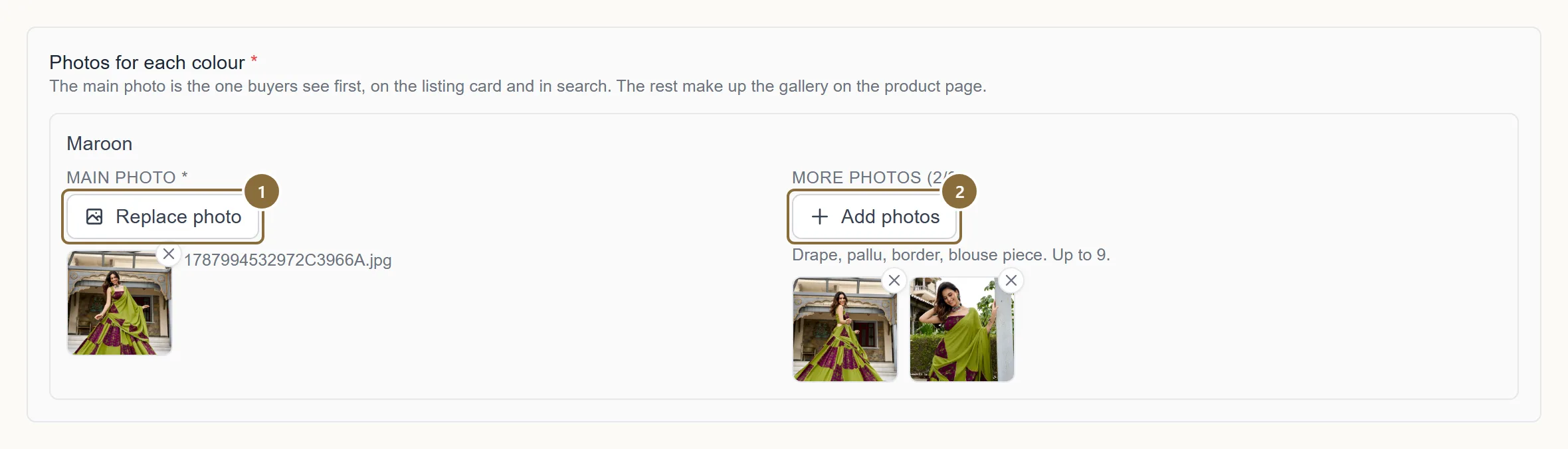
Main photo, required
One per colour. It is the picture on the listing card, in search results and in Google Shopping. Choose photo opens your files; Replace photo swaps it.
More photos, up to 9
The gallery on the product page, in the order you add them. You can add them in several goes; new ones are appended. The button greys out at nine; remove one to add another.
How the storefront shows them
Shape and framing
The product card is a fixed portrait frame, two wide by three tall. The product page gallery and its thumbnails use the same frame. A photo in that shape is shown whole; any other shape is cropped from the centre, so a square photo loses its top and bottom, and a landscape photo loses both sides.
Shoot the main photo so the whole garment, hem included, sits inside a 2:3 portrait. Leave a little air above the head and below the hem. The card also shows the second photo on hover, so make the second one the back or the full drape.
Per garment
What to shoot
Saree: the full drape on a model or form, the pallu spread flat, the border close up, the blouse piece, the fabric texture in daylight.
Lehenga choli: the full set front on, the flair in motion or spread, the blouse front and back, the dupatta, the work close up, the lining or can-can if it is part of the piece.
Kurta sets and gowns: front, back, a side or three-quarter view, the neck and sleeve detail, the fabric close up, the bottom or dupatta that comes with it.
Plain background, daylight or soft even light, no filters that shift the colour. The colour in the photo is the colour the customer expects at the door.
Under Review
After upload
Each photo is converted into the sizes the storefront serves. A listing cannot be approved until every photo has finished, which usually takes a minute or two. If a photo fails processing the reviewer sees it and will ask you to upload it again.
Details tab · Product video (optional)
The product video
One short clip per product, shown as a reel on the home page and on the product page. The field appears on the Details tab when videos are switched on for your panel.
Portrait, 2 to 90 seconds, MP4 or MOV (WebM also accepted), under 150 MB. It uploads straight from your browser with a progress bar and is processed in the background; you can save the product while it says "Processing…" and the video appears when it is ready. A clip that fails never blocks the product; you see "Could not process this video" with Replace and Remove.
Keep these
Rules and common mistakes
- JPG or PNG, under 5 MB, one main photo and up to nine more per colour.
- The upload refuses anything else. The 5 MB limit is per file, not per listing.
- Portrait 2:3, whole garment in frame.
- That is the frame on the card, the product page and the thumbnails. Anything else is centre-cropped and the hem is the first thing to go.
- Photos of the colour they are attached to.
- Each colour is its own line on the store. A photo of another colour is a return.
- No catalogue images, watermarks or reference text.
- A reviewer rejects them, and a customer who sees "Reference Photo" on the product page does not buy.
- Order the gallery: whole piece, back, detail, included items.
- The second photo shows on hover over the card; the rest follow in the order you added them.
In short
Questions sellers ask
- The photo is 6 MB. Do I have to reshoot?
- No. Export or save it again as JPG at a slightly lower quality, or resize it to 1600 by 2400 pixels. That is well under 5 MB and still sharp.
- Can I replace a photo on a live product?
- Yes, from Edit on All Products. A swapped main photo is flagged for us to look at again, but the product stays live meanwhile.
Related guides
Add a product
The four steps of the Add Product screen: category, details, colours with photos and prices, then review and send for approval.
Listing standards
How to name a product, what the descriptions must contain, what the storefront adds for you, and the reasons a listing is sent back or disapproved by Google Shopping.
Edit, clone or retire a product
What you can change on a product in each status, what happens when you save, adding and removing colours and sizes, Copy for a new colourway, and how to stop selling a piece.