

On this page
Before you start
Your pickup address must be registered with the courier. Orders are collected from that address, so the panel will not accept a new listing until it is registered. If it is not, an amber card at the top of Add Product tells you and gives you the button. Until then you can fill the form in; it is kept as a draft.
Have the photos for every colour on the computer or phone you are using. JPG or PNG, each under 5 MB.
Know the packed parcel's weight in kilograms. Weigh it as it leaves you, with the garment inside.
Before the form
Where to find it
In the sidebar, under Products, choose Add Product. The same screen opens from the Add Product button on the Dashboard and on All Products.
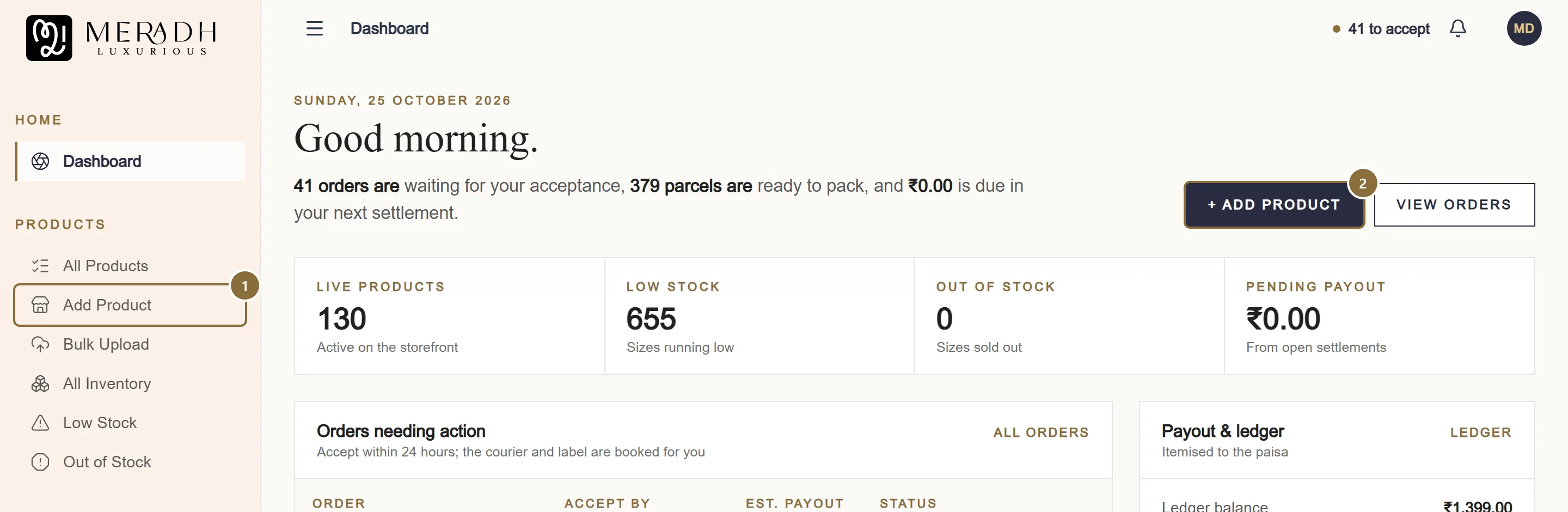
Add Product in the sidebar
Opens the four-tab form on a blank listing.
Add Product button
The same screen, one click from the Dashboard.
Tab 1 of 4 · Category
Choose the category
Choose the category first. It decides which sizes and colours you can pick, which specifications are mandatory and which tax code (HSN) the invoice uses.
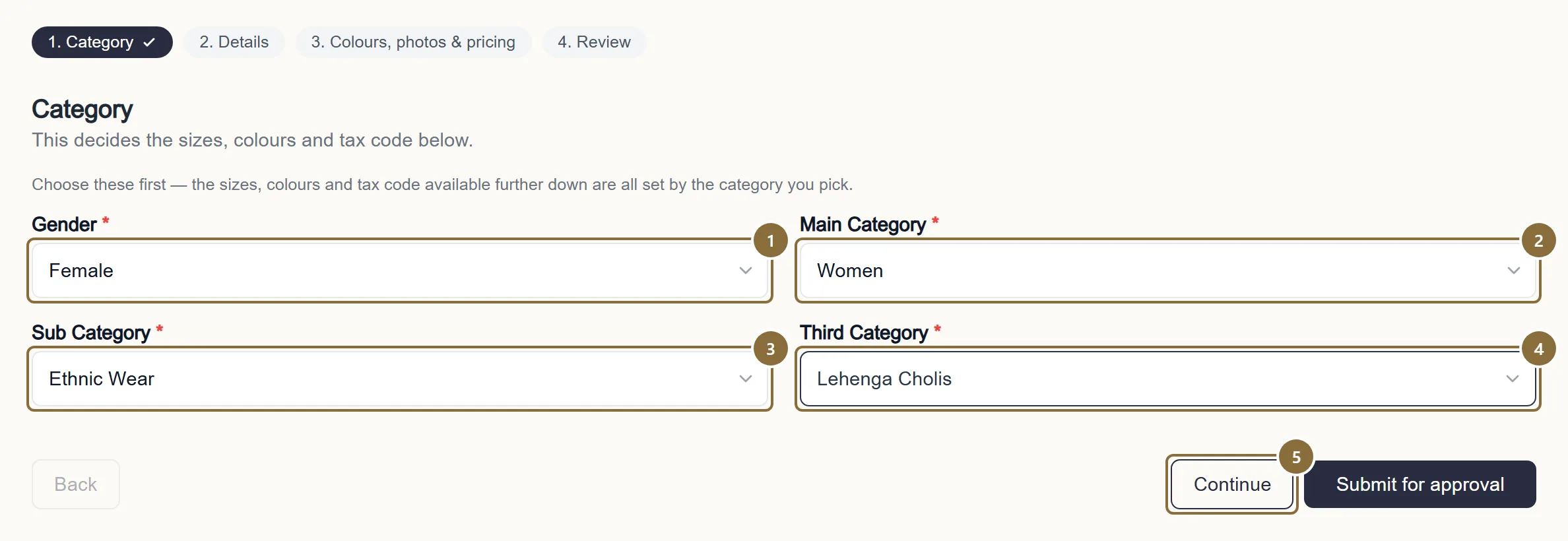
Gender
Who the piece is for. It follows the main category you pick next (Women sets Female, Men sets Male), so you normally do not need to touch it.
Main Category
Women, Men or Kids. Picking this unlocks the sub category.
Sub Category
For example Ethnic Wear. Picking this unlocks the third category.
Third Category
The product type the customer browses, such as Lehenga Cholis or Sarees. This is the one that sets everything below it.
Continue
Moves to the next tab. You can also click any tab directly.
Tab 2 of 4 · Details
Name and describe the piece
The name and the two descriptions are what a customer reads. Everything else on this tab is either optional or set by the category.
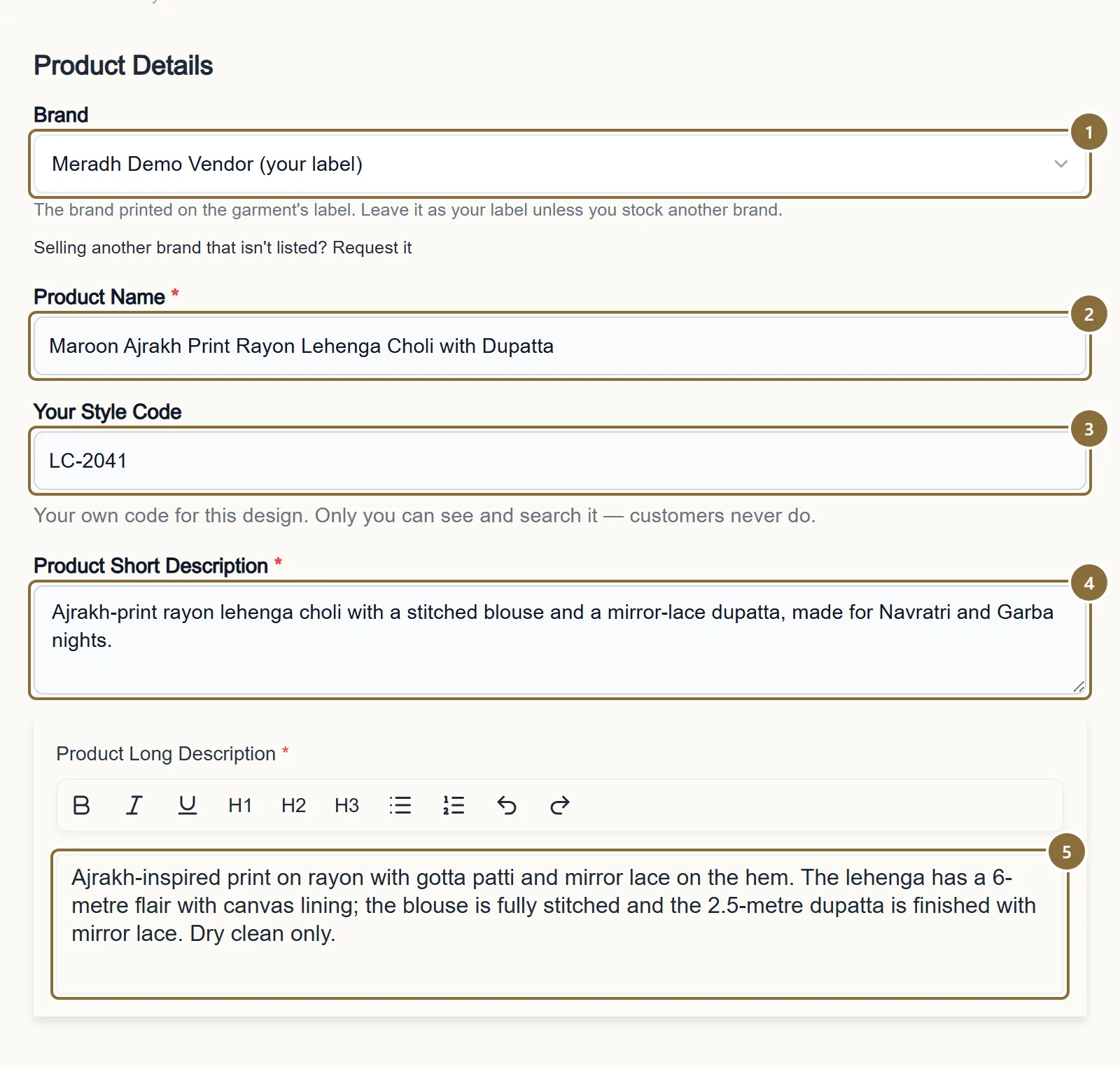
Brand
The label on the garment. It is your own label unless you pick an approved brand from the list. The storefront shows this brand on the product page.
Product Name
Between 3 and 200 characters. Name the piece, the fabric and the colour: "Teal Banarasi Silk Saree with Zari Border". Do not put your brand or label in the name, and do not start it with words like New or Designer. Each name must be unique within your catalogue.
Your Style Code
Optional. Your own catalogue number for this design, up to 64 characters. Only you see it; it is there so you can search your products the way you do in your own books.
Product Short Description
At least 10 characters. One or two sentences that appear near the top of the product page.
Product Long Description
At least 20 characters of real text, though 300 or more sells better. Describe the fabric, the work, what is included (blouse piece, dupatta, lining) and how it falls. Formatting buttons are above the box.
Tab 2 of 4 · Details
Care, HSN and the parcel
The right-hand column holds the small set of facts the invoice and the courier need.
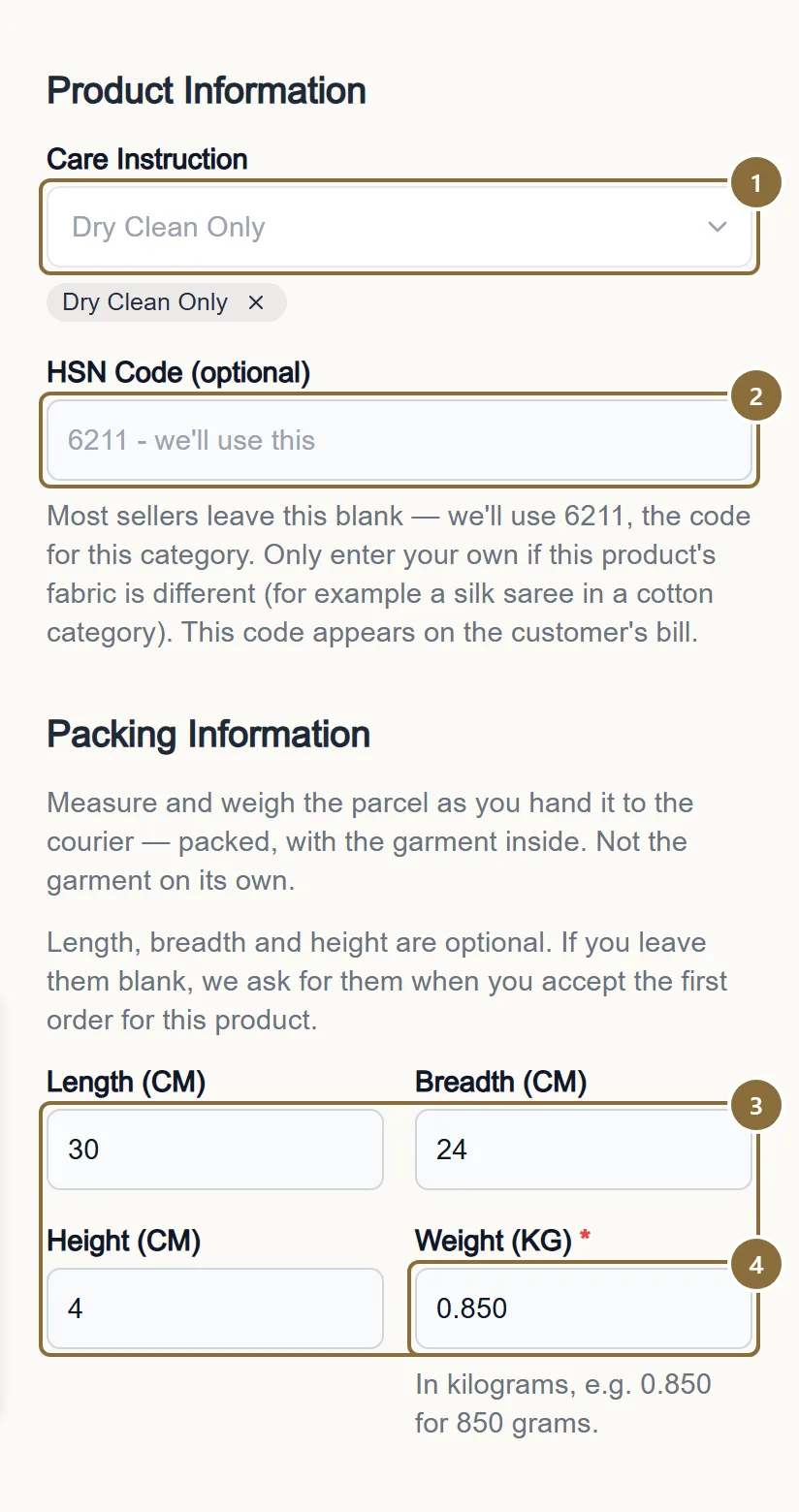
Care Instruction
Optional. Pick one or more, such as Dry Clean Only. They print on the product page.
HSN Code
Optional. Leave it blank and the invoice uses the code shown in the box, which is the code for the category. Only type your own (4, 6 or 8 digits) when this product's fabric puts it under a different code.
Length, Breadth, Height (CM)
Optional. The packed parcel's size in centimetres. If you leave them blank, the panel asks for them when you accept the first order for this product. A value under 1 or over 150 is refused, which catches a slip from metres or millimetres.
Weight (KG)
Required. The packed parcel in kilograms, so 850 grams is 0.850. Anything under 0.05 or over 25 is refused.
Tab 2 of 4 · Details
Specifications and tags
Below the two columns are the specifications for this category. The ones marked with a red asterisk are mandatory for the category you chose; the rest are optional but help the customer filter.
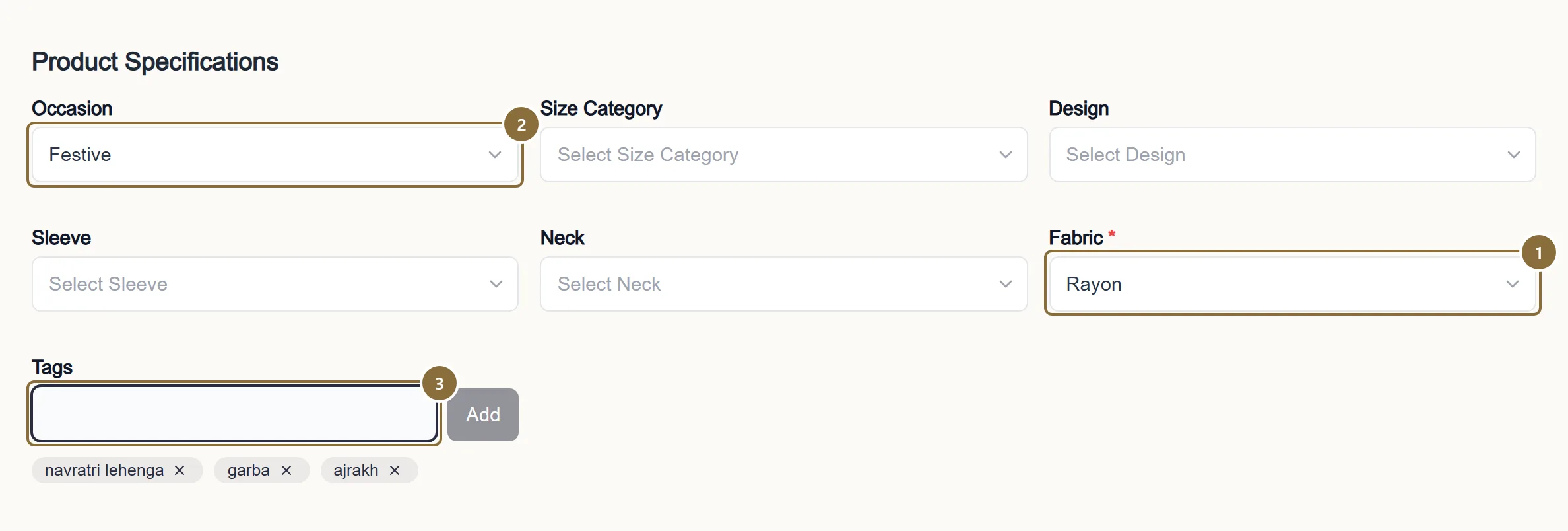
Mandatory specification
For example Fabric on a lehenga choli. The tab will not show a tick, and the listing cannot be sent, until every asterisked field is filled.
Optional specifications
Occasion, design, neck, sleeve and so on, as the category offers them. Fill what applies.
Tags
Search words a customer might type, one per chip: "navratri lehenga", "garba". Press Enter after each. Three or more is a good number.
Tab 3 of 4 · Colours, photos & pricing
Colours and sizes
Each colour you sell is its own line on the storefront with its own photos, stock and price. Pick the colours first, then the sizes; every colour gets the same set of sizes to start with.
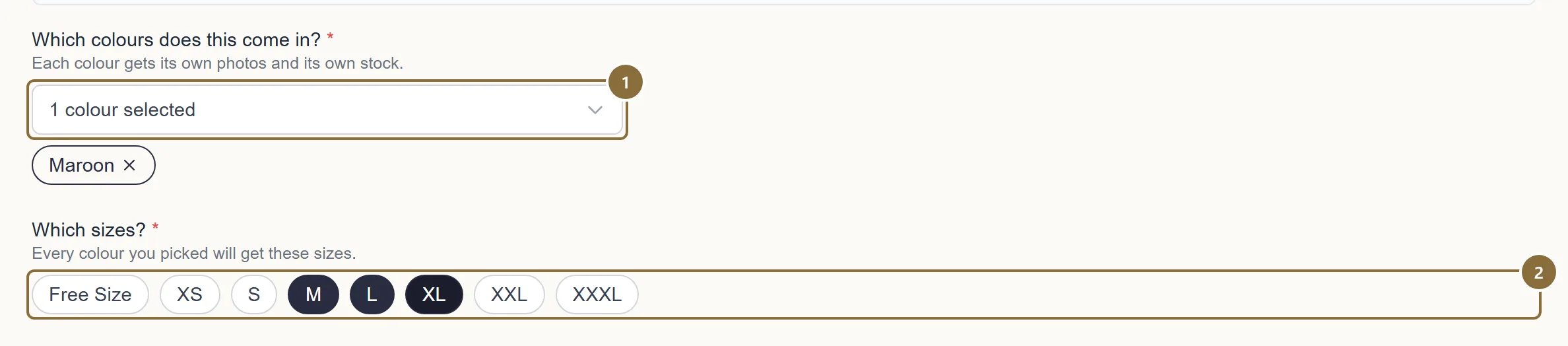
Choose colours
Opens a searchable list. Type the colour, click it, and it appears as a chip. Click a chip to remove the colour again.
Which sizes?
Click each size you stock. The chips are greyed out until at least one colour is chosen. For a free-size category this section is replaced by a note and there is nothing to pick.
Tab 3 of 4 · Colours, photos & pricing
Photos for each colour
A box appears for every colour you picked.
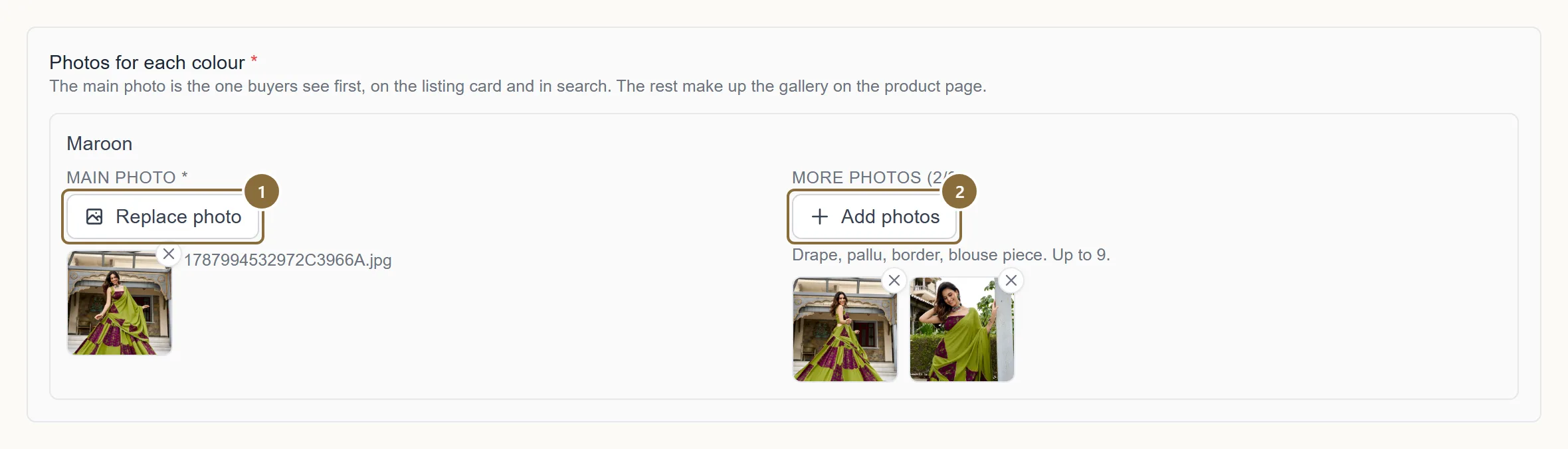
Main photo
Required for each colour. This is the picture on the listing card and in search results, so it should show the whole piece, front on, on a plain background. JPG or PNG, under 5 MB. Any shape is accepted.
Add photos
Up to 9 more per colour, each under 5 MB. They make up the gallery on the product page: the drape, the back, the border, the blouse piece, the work close up. You can add them in several goes; new ones are added after the ones already there.
Tab 3 of 4 · Colours, photos & pricing
Price and stock
The grid has one row for every colour and size. Every cell must be filled before the listing can be sent.
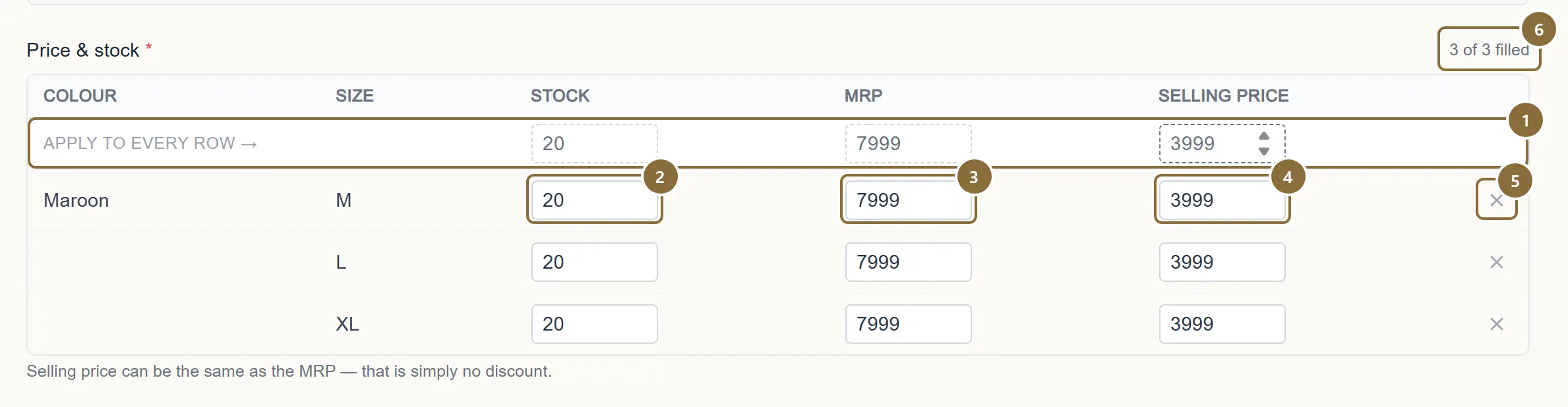
Apply to every row
Type a number in the dashed box above a column and every row takes it. Most listings have one price across sizes, so this is usually the only typing you do; change the odd row afterwards.
Stock
Whole pieces you can ship today. 0 is allowed and shows the size as out of stock on the storefront.
MRP
The maximum retail price printed on the tag, at least 1.
Selling price
What the customer pays. It cannot be higher than the MRP; equal to the MRP simply means no discount.
Remove a row
Drops that one size from that one colour, for a run that is not the same in every colour.
Filled counter
Shows how many cells are done, so you can see at a glance what is left.
Tab 4 of 4 · Review
Review and send for approval
The Review tab is a summary. If anything is still missing it is listed at the top in red, with a link to the tab that needs it.
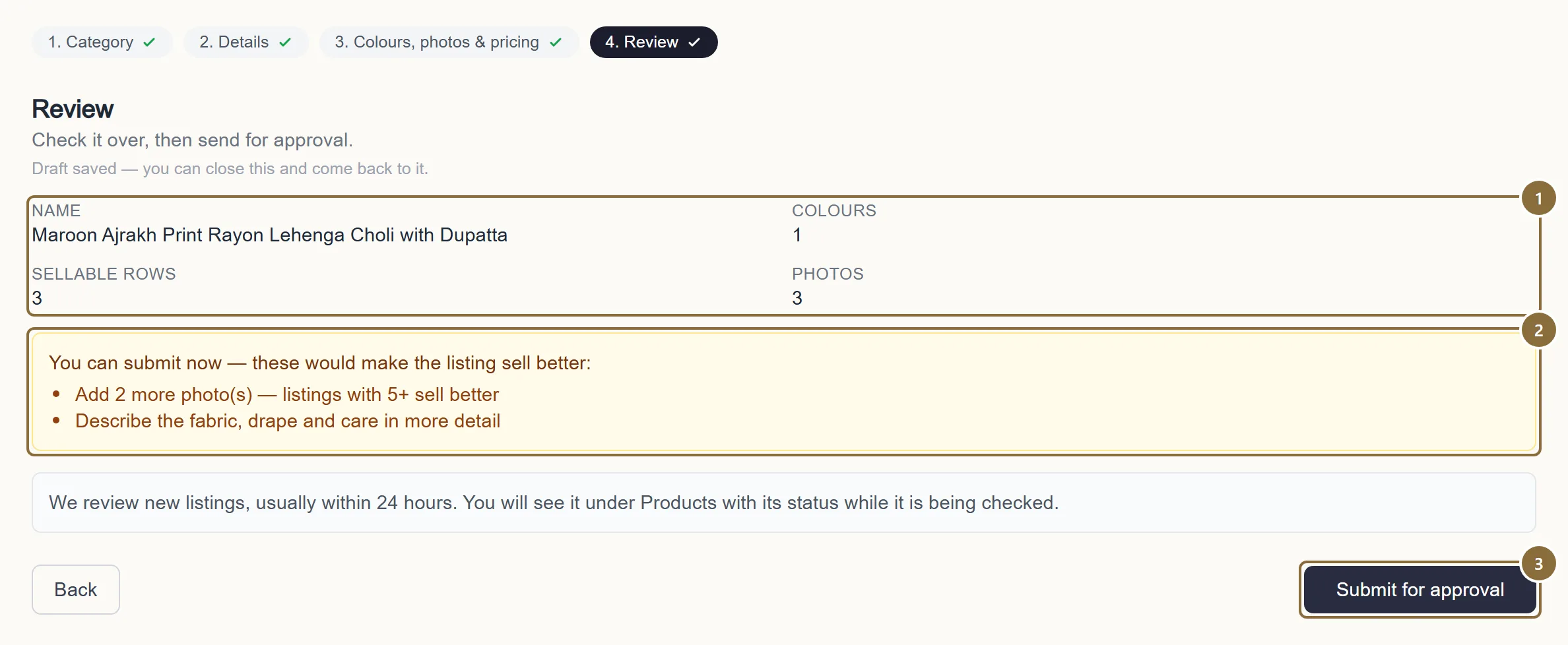
Summary
Name, number of colours, number of sellable rows (colour × size) and number of photos.
Suggestions
Amber notes you can ignore: fewer than 5 photos, fewer than 3 tags, a long description under 300 characters. The listing can be sent without them; it will just sell less well.
Submit for approval
Sends the listing for review. The button is on every tab, not only this one, so you can submit from wherever you are once every tab has its tick.
Afterwards
What happens next
It shows as Under Review
You are taken to All Products, where the new listing sits with the status Under Review. We check every new listing before it goes live. Nothing is shown to customers yet.
Approved: it goes live
The status changes to Active and the product appears on the storefront under your label. You can edit a live product at any time; small fixes apply straight away and the product stays on sale. A big change to the name, photos or price is flagged for us to look at again.
Rejected: read the note and fix it
The status changes to Rejected and the reviewer's reason appears under it on All Products. Open the product with Edit, fix what the note says, and save. It goes back to Under Review. The common reasons are a brand name or promotional words in the title, a misspelt title, photos that are not of the real piece, or the wrong category; see Listing standards.
Permanently Rejected
A listing we cannot carry at all. It cannot be edited or resubmitted. If you think this is a mistake, raise a ticket under Support.
Keep these
Rules and common mistakes
- Register the pickup address before you list.
- The panel refuses to submit a listing until the courier has your pickup address, because an order it cannot collect is worse than no order.
- No brand name and no New, Latest or Designer in the product name.
- The storefront adds your label beside every product already, and Google Shopping rejects a title that repeats it or opens with a promotional word.
- Check the spelling of the name before you submit.
- The name is the title of the page and the text in search results. A typo there is the first thing a customer sees and the first reason a listing is sent back.
- Photos of the real piece, under 5 MB, JPG or PNG, up to 1 + 9 per colour.
- A photo over 5 MB is refused on save. Stock or catalogue images that are not the garment you ship are a reason for rejection.
- Selling price never above MRP; MRP at least 1; stock a whole number.
- These are checked on the page and again on save, so a wrong value stops the listing rather than reaching a customer.
- Weight is the packed parcel in kilograms, 0.05 to 25.
- Freight is billed on it. 850 for 850 grams would be refused as over 25 kg; type 0.850.
- One name per design: the same product name cannot be used twice in your catalogue.
- A second product with the same name is refused on submit. For a new colour of an existing design, use the Clone option on All Products instead.
Related guides
Listing standards
How to name a product, what the descriptions must contain, what the storefront adds for you, and the reasons a listing is sent back or disapproved by Google Shopping.
Product photos
Formats and size limits, how many photos each colour takes, how the storefront crops them, what to shoot for a saree or a lehenga, and the optional product video.
Stock and inventory
The All Inventory editor, the per-product inventory page, the Low Stock and Out of Stock lists, marking a size out of stock, and what stock does on the storefront.
Edit, clone or retire a product
What you can change on a product in each status, what happens when you save, adding and removing colours and sizes, Copy for a new colourway, and how to stop selling a piece.
Bulk upload from Excel
Download the template for a category, fill one row per size, give image links, upload, and read the result report. Imported products go to review like any other.