

On this page
Before you start
Your pickup address registered with the courier. The same gate as Add Product: no listing until the courier has the address.
Photos online. The sheet takes image links, not files. Each photo needs a public, direct URL ending in the image (jpg or png). If your range is already on another marketplace, those image links work.
One category per file. The template's dropdowns are built for the category you choose; keep the same category when you upload.
Bulk Upload · Step 1
Choose a category and download the template
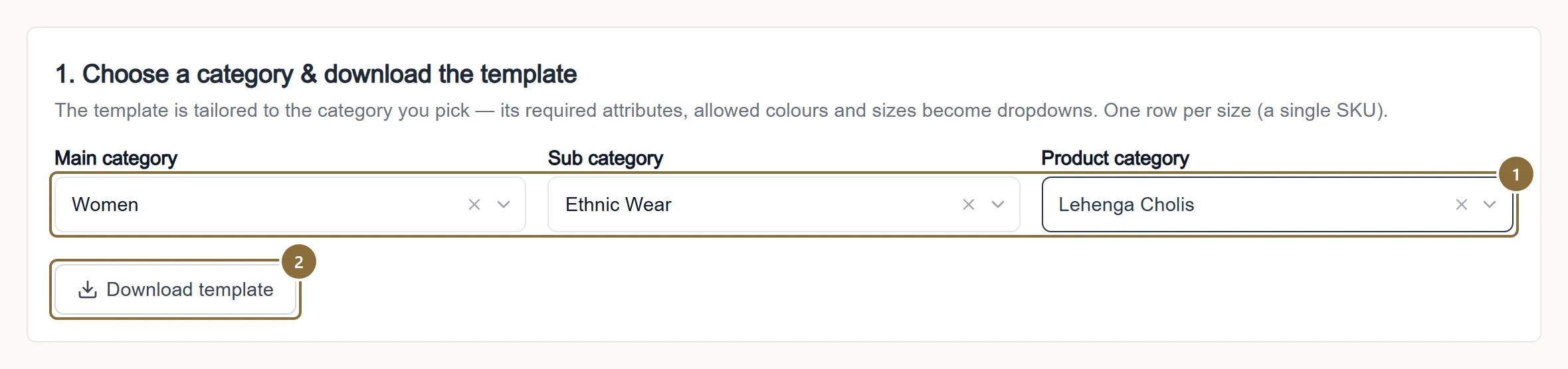
Pick Main category, Sub category and Product category, then Download template. The file is named for the category and opens in Excel or Google Sheets.
Category
All three levels, the same as on Add Product. The button stays grey until the product category is chosen.
Download template
Builds the workbook for that category: its required attributes, allowed colours and sizes as dropdowns.
In Excel · Products sheet
Fill the sheet
The workbook has four sheets. Instructions explains the rules. Example shows filled rows and is never imported. Reference lists the allowed values for every dropdown. Products is where you type: row 1 is the headers, with a * on required columns; row 2 is help text; your data starts on row 3.
One row is one product in one colour in one size. Repeat the product-level columns, name, descriptions, weight, on every row of that product. A product_handle groups the rows of one product; leave it blank and rows are grouped by product name.
Bulk Upload · Step 2
Upload the filled template
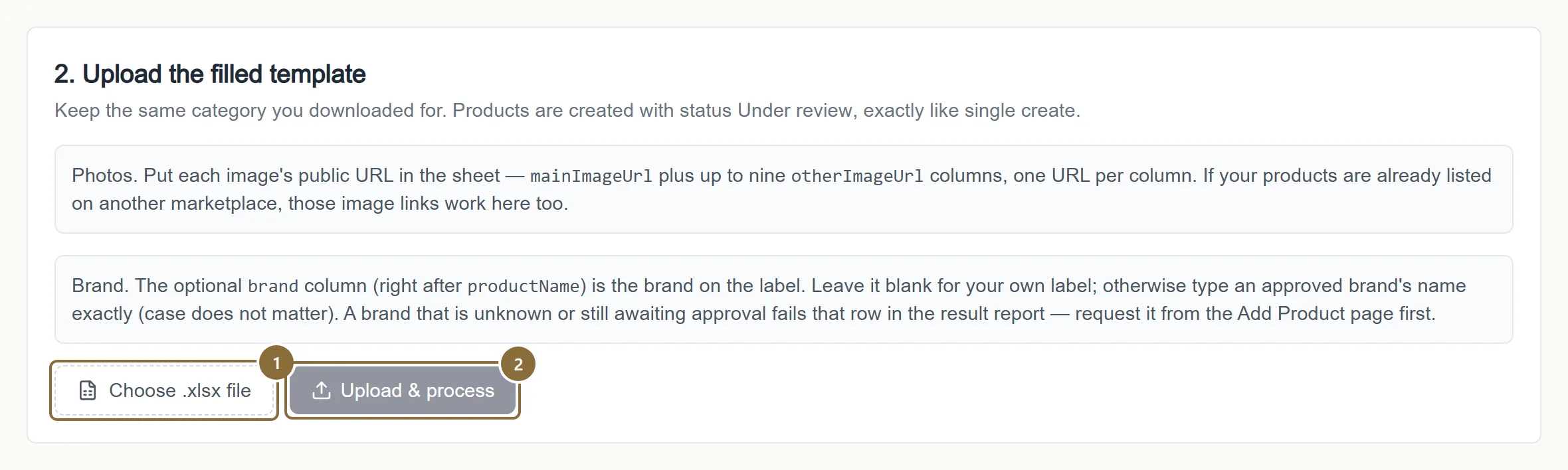
Keep the same category selected. Choose the .xlsx file and press Upload & process.
Choose .xlsx file
Only .xlsx, one file at a time, up to 8 MB. Larger files: split them.
Upload & process
The file is accepted at once and processed in the background. The page shows the job number and refreshes itself.
Bulk Upload · Step 3
Read the result
The status moves PENDING → VALIDATING → PROCESSING → COMPLETED (every product created), PARTIAL (some failed) or FAILED (none created). Under it: Rows, Products, Created, Failed, and a table with one line per product: its rows, CREATED or FAILED, and the reasons.
Download report gives the same table as a workbook (Product, Handle, Source rows, Status, Product ID, Errors). Fix the failed rows in your sheet, delete the created ones from it, and upload again with Upload another.
Afterwards
What happens next
Products appear under All Products as Under Review
Each created product is reviewed like a hand-made one; see Listing standards. Stock and prices are editable at once from Stock and inventory.
If the server restarted mid-job
The job shows FAILED with "Processing was interrupted by a server restart". Re-upload the same file: products already created are skipped as duplicates.
Keep these
Rules and common mistakes
- One row per colour and size; repeat the product columns on every row.
- The importer groups rows into a product by handle or name. A row with a different name is a different product.
- mainImageUrl must be a public, direct link to a jpg or png.
- It is the only image that can fail a product: a link that does not download fails the row. Extra images that fail are skipped and the product still imports.
- Weight is the packed parcel in kilograms, e.g. 0.850.
- The row is refused under 0.05 or over 25, which catches grams typed as kilograms.
- MRP at least the selling price; qty a whole number from 1 to 1,00,000.
- Each is checked per row and named with its row number in the report.
- Product names unique, in the file and in the catalogue.
- A duplicate inside the file fails both rows; a name that already exists as a product fails the row.
- Do not start a cell with = + - or @.
- The importer neutralises it as a formula; the text reaches the listing with an apostrophe in front.
In short
Questions sellers ask
- Can I upload a zip of photos?
- No. The sheet takes one image link per column: mainImageUrl plus up to nine otherImageUrl columns.
- What does "brand X is not in the brand list" mean?
- The brand column must match an approved brand exactly, or be blank for your own label. Request a new brand from Add Product first; it cannot be used until it is approved.
- Why did a product fail with an attribute error?
- The category marks some attributes as required (Fabric on most), and a value must come from the Reference sheet. Check the spelling against the list.
Related guides
Add a product
The four steps of the Add Product screen: category, details, colours with photos and prices, then review and send for approval.
Listing standards
How to name a product, what the descriptions must contain, what the storefront adds for you, and the reasons a listing is sent back or disapproved by Google Shopping.
Stock and inventory
The All Inventory editor, the per-product inventory page, the Low Stock and Out of Stock lists, marking a size out of stock, and what stock does on the storefront.
Product photos
Formats and size limits, how many photos each colour takes, how the storefront crops them, what to shoot for a saree or a lehenga, and the optional product video.