

On this page
Before you start
Pickup address registered with the courier, with someone reachable on the pickup number during the day. The courier calls that number.
The product's packed parcel size. If the listing has no length, breadth and height, the panel asks for them when you accept, and saves them to the listing so it asks once.
A printer, for the label that goes on the parcel.
Orders
The order pipeline
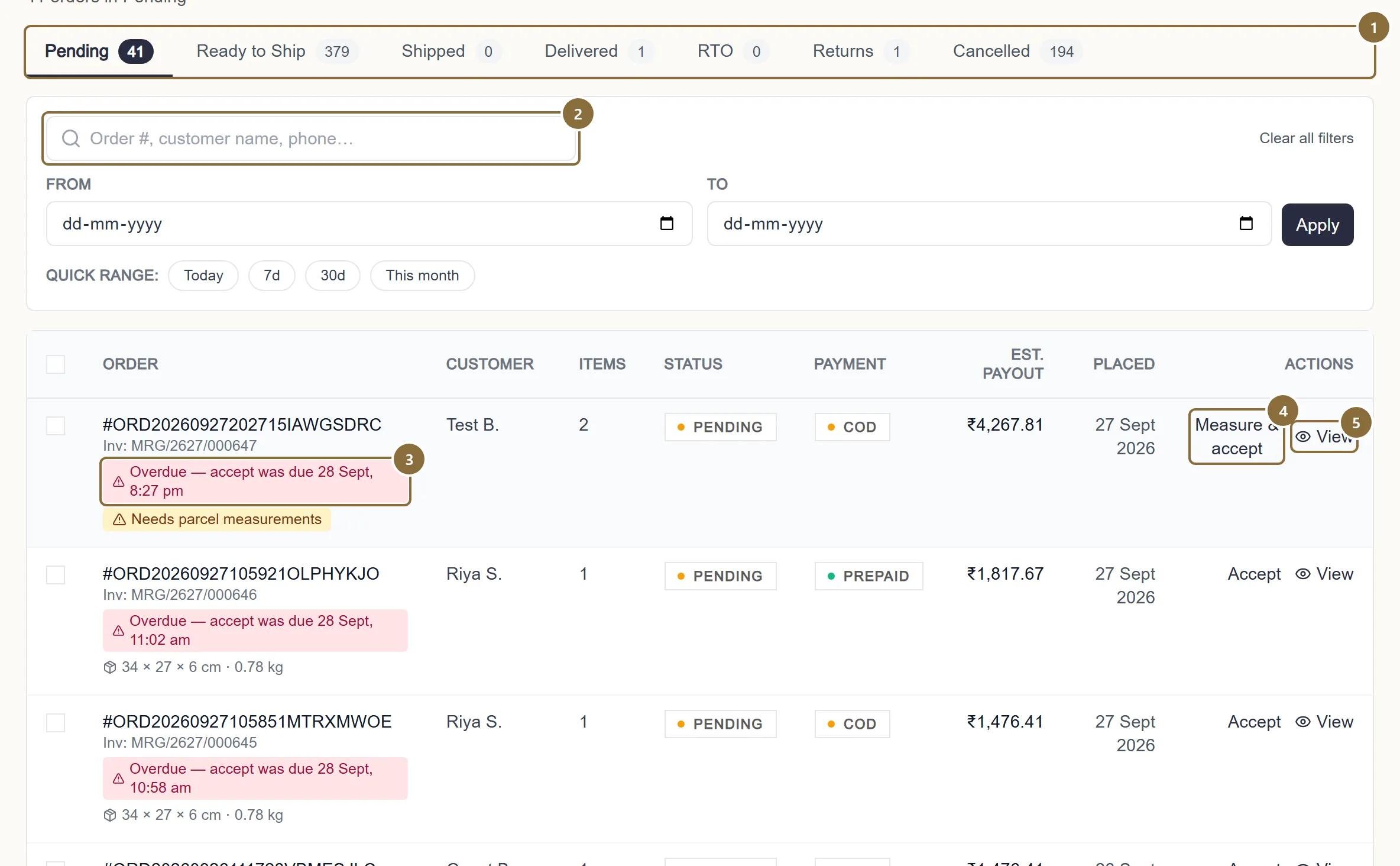
Seven tabs, left to right: Pending (waiting for you), Ready to Ship (accepted, label booked, not yet collected), Shipped (with the courier), Delivered, RTO (coming back to you), Returns, Cancelled. Each tab shows its count.
Pipeline tabs
Click a tab to see its orders. The Pending count is what needs you now.
Search and dates
Order number, customer name or phone; a date range; quick ranges Today, 7d, 30d, This month.
Deadline badge
"Accept by" on Pending, "Ship by" on Ready to Ship. Amber when six hours remain, red when overdue.
Accept
Accepts the order from the list. It reads "Measure & accept" when the product has no parcel size yet.
Label and View
Label opens the shipping label once the courier has issued the AWB. View opens the order.
Orders · order #
The order page
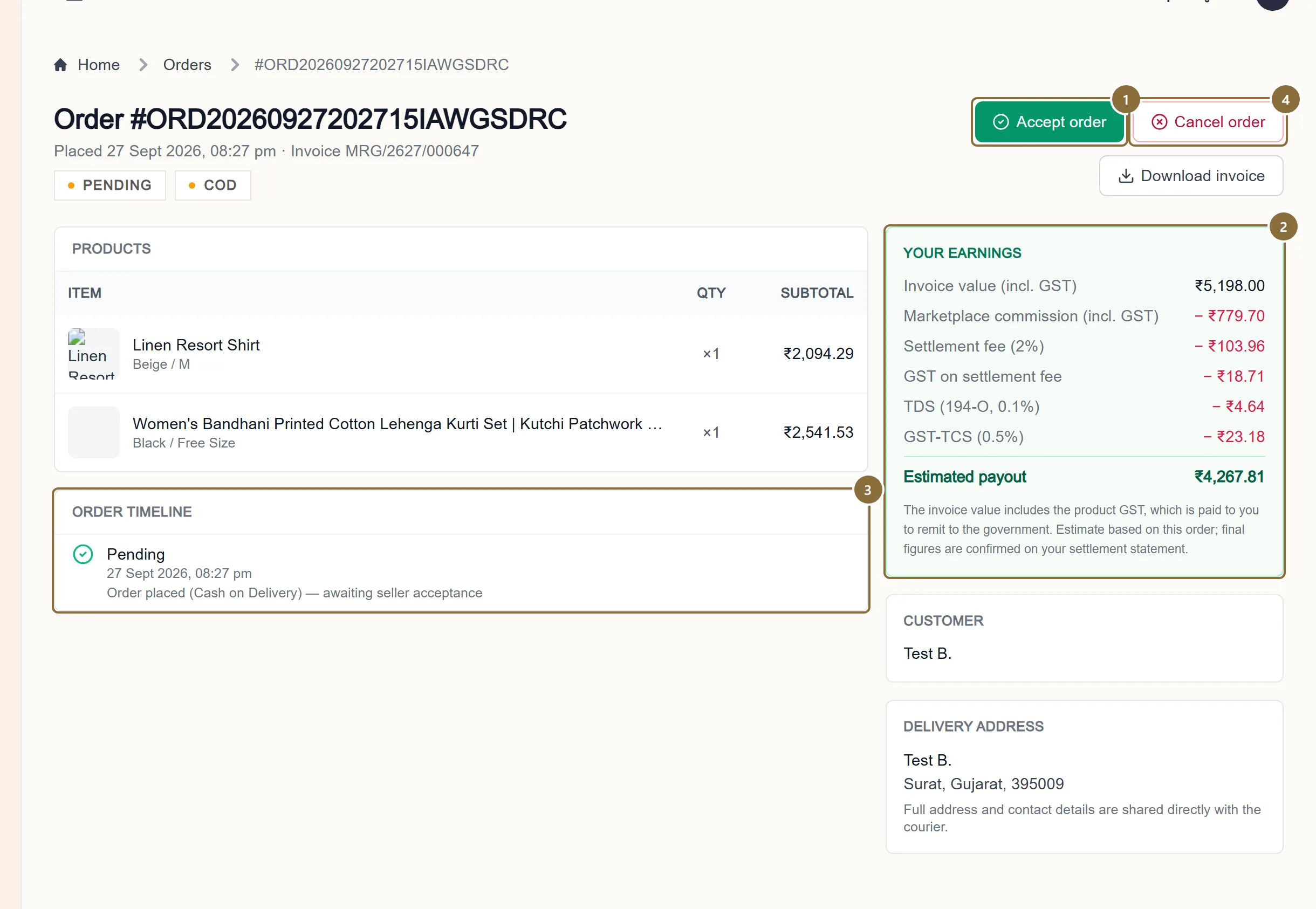
Products with quantity and subtotal, the order timeline, Your earnings (invoice value, the agreed commission and fees, shipping, TDS and GST-TCS, and the estimated payout), the customer's name, the delivery city and pincode, and the Shipment card. The full address and phone go to the courier, not to you.
Accept order
Opens the confirmation with the parcel the courier will be told about.
Your earnings
What this order pays you after deductions, before the settlement is raised.
Order timeline
Every status change with its time. The Shipment card appears beside it once you accept: courier, AWB, parcel, the pickup address frozen at accept, and the tracking link.
Cancel order
Available until the parcel is collected. Asks for a reason the customer will see.
Accept this order?
Accept and the parcel
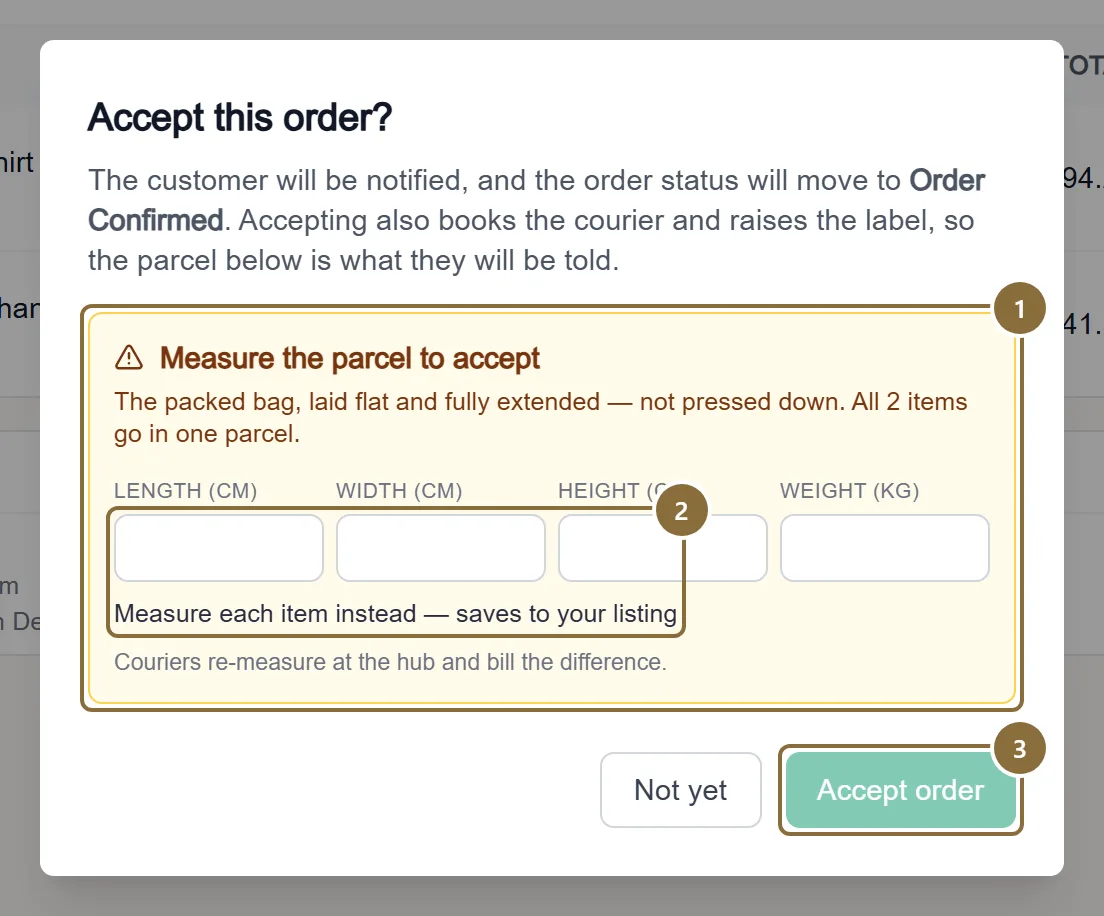
The dialog says what will happen: the customer is notified, the status moves to Order Confirmed, and accepting also books the courier and raises the label. The parcel shown is what the courier is told.
Parcel
Length × breadth × height in cm and weight in kg, from your listing. Edit if you packed it differently.
Measure the parcel
If the listing has no size: type the packed parcel, or measure each item and the panel saves it to the listing. Couriers re-measure at the hub and bill the difference, so measure the real parcel.
Accept order
Done. The courier is being booked; the row shows "Preparing label…" for a few seconds.
Ready to Ship
Pack, print, hand over
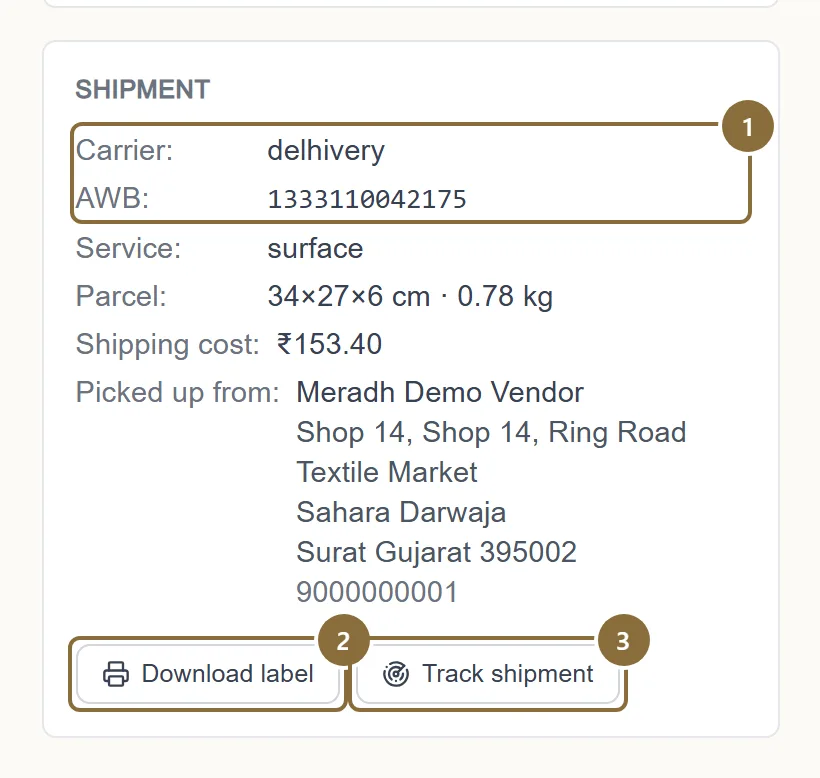
Once the AWB arrives, the Shipment card shows Download label and Track shipment, and the courier's pickup is scheduled. Print the label, pack the piece securely in tamper-evident packaging with the invoice inside, stick the label on, and hand the parcel to the rider. The scan at pickup moves the order to Shipped.
If the booking did not start (the panel says so under the order), the Shipment card offers Pack & ship or Create shipment; the courier and parcel are still assigned automatically, the cheapest serviceable courier for that pincode and weight.
Carrier and AWB
Who is collecting and the tracking number on the label.
Download label
Opens in a new tab. If your browser blocks it, the panel shows a link to open it.
Track shipment
The courier's latest scan and the scan history.
Shipped · Delivered · RTO
In transit, delivered, and the exceptions
The status follows the courier: Shipped → In Transit → Out For Delivery → Delivered. A courier exception shows as Delivery Delayed. A parcel the customer did not take shows as RTO In Transit and then RTO Delivered when it is back with you; it is restocked after the same inspection as a return.
Download invoice on the order page gives the GST invoice for the marketplace fee on that order, available once the payment is confirmed.
Afterwards
What happens next
Delivered
The order waits out the return window, then goes into your next settlement; see Settlements.
Cancelled by you
Allowed until the parcel is collected. Stock is restored, the label is cancelled with the courier, the customer is refunded and told your reason. A cancellation penalty may apply per the marketplace agreement.
Return requested
The order moves to the Returns tab and the request to Returns & Exchanges; see Returns and exchanges.
Keep these
Rules and common mistakes
- Accept within 24 hours; hand over within two business days.
- The badge turns amber six hours before each deadline. Late orders count against you and can be cancelled.
- Measure the packed parcel, not the garment.
- The courier bills on the larger of real weight and volume and re-measures at the hub. A parcel declared smaller than it is costs you the difference.
- Print the label the panel gives you; use no other.
- The AWB on it is what the courier scans. A parcel without it is not collected.
- Tamper-evident packaging, invoice inside.
- Transit damage from poor packaging is the seller's responsibility.
- Keep the pickup number answered.
- The rider calls before coming. "Not Picked" is a missed day.
- Cancel only before pickup, and say why.
- After collection the parcel is in transit and cannot be cancelled. The reason is shown to the customer.
In short
Questions sellers ask
- Can I choose the courier?
- No. The cheapest serviceable courier for the customer's pincode and the parcel weight is picked for you, and if one refuses the shipment the next is tried.
- The label button is missing.
- It appears once the courier has issued the AWB, usually within seconds of accepting. If the row says the shipment was not started, open the order and use Create shipment.
- Where is the customer's address?
- On the label and with the courier. The panel shows the delivery city, state and pincode only.
Related guides
Returns and exchanges
The return window, the queue, what the customer sends you, approving or rejecting each line, offering an exchange, the reverse pickup, and when the refund reaches the ledger.
Settlements
When a settlement is raised, what it contains, the two statuses you see, reading the breakdown, and the monthly GST report for your accountant.
Profile and pickup address
The sections of the Profile page, the business name customers see, how a pickup address change is checked with the courier before it is saved, bank details, documents, vacation mode, brands and the agreement.
Stock and inventory
The All Inventory editor, the per-product inventory page, the Low Stock and Out of Stock lists, marking a size out of stock, and what stock does on the storefront.